
Creating Accessible Calendars & Schedules
Calendars and schedules are commonly used to share important dates, events, deadlines, and activities with students, families, employees, and the community. Whether you’re creating a school calendar in a spreadsheet, scheduling events in Google Calendar or Microsoft Outlook, designing a monthly calendar in Canva, or sharing a calendar on a website, accessibility should be considered from the beginning. Creating accessible calendars involves more than organizing dates in a visually appealing layout. How events are labeled, how information is structured, and how people navigate or interact with a calendar can affect their ability to find and understand important information. Features such as clear event descriptions, logical reading order, accessible formatting, and alternative ways to view calendar information help ensure everyone can access and use the information.
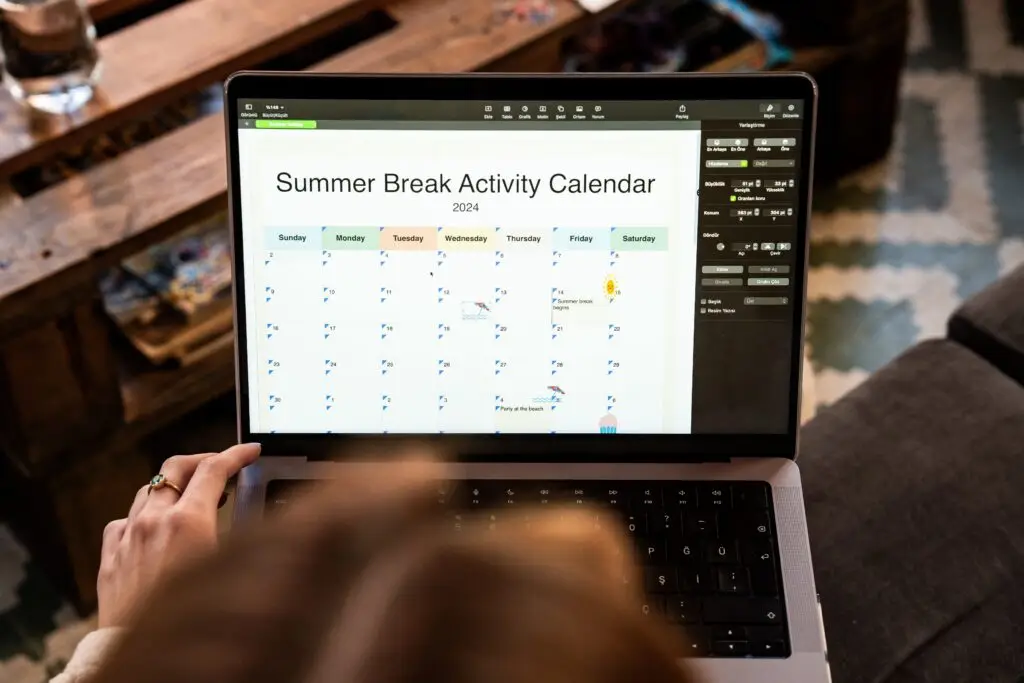
Below are tips for creating accessible calendars and schedules, applying Universal Design for Learning (UDL), sharing content on websites, and additional resources for program-specific guidance.
Use Clear Titles & Labels
Give calendars, schedules, and events descriptive titles, and clearly identify dates, times, locations, and other important information.
Organize Information Logically
Arrange calendar information in a consistent, predictable order so people can easily navigate dates, events, and related details.
Use Accessible Structures & Formatting
Use built-in calendar features, properly structured tables, or accessible lists rather than relying on spaces, text boxes, merged cells, or visual positioning to organize information.
Provide Complete Event Details
Include meaningful event names, dates, start and end times, locations or meeting links, and other information needed to understand or participate in an event.
Use Accessible Color & Contrast
Ensure text and important visual elements have sufficient contrast, and never rely on color alone to distinguish event types, schedules, or important dates.
Make Links Meaningful
Use descriptive link text for event details, registration forms, meeting links, or additional information so people understand where a link will take them.
Make Tables & Spreadsheets Accessible
When creating calendars in Excel, Google Sheets, or other spreadsheet programs, use clear row and column headings, meaningful worksheet names, and a logical reading order.
Make Interactive Calendars Accessible
Ensure users can navigate dates, open event details, change views, and interact with calendar controls using a keyboard and assistive technology.
Make Shared Calendar Files Accessible
Check that calendars shared as PDFs, documents, spreadsheets, or other downloadable files maintain accessible structure, reading order, and meaningful event information.
Provide Alternative Ways to View Information
When possible, offer an accessible list or agenda view in addition to a traditional monthly calendar grid so people can review events in a format that works for them.
Avoid Images of Calendars
Share calendars as accessible digital content whenever possible rather than screenshots or images that cannot be easily navigated or read by assistive technology.
Communicate a Clear Purpose
Help people understand what the calendar includes, who it is intended for, and how it should be used.
Prioritize Important Information
Make key dates, deadlines, events, and required actions easy to identify.
Provide Multiple Ways to View Information
When possible, offer calendar, agenda, or list views so people can access schedules in ways that work best for them.
Use Consistent Organization
Present dates, times, event details, and categories in a predictable format to help people quickly locate information.
Reduce Visual Clutter
Avoid overcrowded calendar layouts, unnecessary decorations, and excessive color coding that may make information difficult to understand.
Support Planning & Organization
Include clear deadlines, reminders, event descriptions, and other details that help people prepare and manage their time.
Provide Helpful Context
Explain unfamiliar event names, abbreviations, or scheduling information so people understand what an event involves.
Consider Different Access Needs
Make schedules available in formats that work across devices and support different language, reading, and technology needs.
Use Accessible Calendar Tools
Choose calendar tools or website components that support keyboard navigation, screen readers, clear event labels, and accessible controls.
Use Accessible Calendar Tools
Choose calendar tools or website components that support keyboard navigation, screen readers, clear event labels, and accessible controls.
Provide an Accessible List or Agenda View
When possible, offer a chronological list or agenda view alongside a traditional calendar grid so visitors can access events without navigating a complex visual layout.
Use Meaningful Links
When linking to calendars, events, registration forms, or meeting information, use descriptive link text that clearly identifies the destination or purpose.
Use Meaningful Links
When linking to calendars, events, registration forms, or meeting information, use descriptive link text that clearly identifies the destination or purpose.
Check Embedded Calendars
When embedding Google Calendar, Outlook calendars, or other third-party calendar tools, verify that visitors can navigate dates, open events, and use calendar controls with a keyboard and assistive technology.
Avoid Image-Only Calendars
Do not rely solely on screenshots, graphics, or downloadable calendar images to communicate important dates; provide the information as accessible webpage text or another accessible format.
General Resources
These resources provide practical guidance for creating accessible calendars and schedules.
- W3C – Forms Tutorial
- W3C – Tables Tutorial
- WebAIM – Creating Accessible Tables
- WebAIM — Excel Accessibility
- Texas A&M University — Accessible Spreadsheets
- Harvard University — Creating Accessible Excel Spreadsheets
Resources by Platform
Explore the resources below for platform-specific guidance, tools, and instructions to help you create accessible digital content. Accessibility features and options may vary depending on the platform, device, or application version.
- Microsoft
- Canvas
- Canva