

District & school communication, all in one place
Canyons School District uses ParentSquare for school communication — email, text, and app notifications. Every parent gets an account automatically, built from the email address and phone number on file at their child's school.
New to Canyons or a first-time sign-in? Go to parentsquare.com/signin (or install the app) and sign in with the email or phone number your school has on file — your account is usually already waiting for you. More on signing up →
Find your resources
Jump to what you need
For families & students
Families & Student resources
Answers to the most common account, notification, and privacy questions — plus everything you need to know about StudentSquare. Pick a question at left; the answer opens next to it.
How do I sign up for ParentSquare?
Your child's school sends an invitation email or text to join ParentSquare — click the link to activate your account. If the school's database (SIS) already has your contact details on file, you can also set up your account directly with your email or phone number, no invitation needed.
ActionGo to parentsquare.com/signin or install the app, then sign in with Google single sign‑on, your email, or your phone number — it has to match what your school has on file. Not recognized? Contact your school administrator to get your details added; updates show up in ParentSquare after the next daily sync.
Good to know: you'll receive school communications even before you register your account. You only need to register to take part in two‑way conversations or open confidential, student‑specific documents and forms.
How do I fix or change my contact details?
Is the phone number wrong? Do you want to change your primary email? Is your name misspelled? Do you see information for a student who's not yours?
Contact details in ParentSquare are managed by your school and usually synchronized from secure student information system (SIS) records. Once the school updates their official records, changes will automatically be reflected on your account in ParentSquare.
ActionContact the school office directly and ask for your official contact information to be updated.
How do I add a student who's missing from my account?
If a child or school is missing, it's usually because your contact information is inconsistent across the school's student information system, or you have more than one ParentSquare account with different contact details.
ActionContact your child's school to update your contact information in the SIS. Make sure you have the same email and phone number on file for every child and every school — your account corrects itself on the next daily sync.
If you have multiple accounts, you can learn how to merge them here.
How do I update my language preference?
ActionWeb: click your name → "My Account" → "Language Setting."
App: tap the triple-bar menu → "Account" → "Preferences" → "Language Settings."
Select your preferred language and save. If it doesn't stick, your school's SIS is likely overriding it — ask your school to update your language preference in their database of record. Full help article →
How do I change or stop notifications?
Choose "instant" notifications for every post in real time, or "digest," which sends direct messages, alerts, and time-sensitive posts right away but bundles everything else into one message at the end of the day. We recommend digest.
ActionWeb: click your name → "My Account" → "Customize your settings" under Notification Settings.
App: triple-bar menu → "Account" → "Preferences" → "Notification Settings." Full help article →
Can I message my child's teacher directly and privately?
Yes. Use the direct messaging tool: click "Messaging" in the left sidebar to send a private message to your child's teacher, coaches, or club leaders that only you and they can see. Help article on direct messaging →
We're a split family with restrictions — will my ex see my contact information?
No. Each contact has their own private account. Both will see everything related to the shared student, but neither parent can see the other's contact information.
How do I unsubscribe? I'm not a parent!
ParentSquare syncs with each school's student information database, which is built from contact details families provide directly. Most likely, a typo somewhere matches your real phone number or email. Only the school or district can update contact details, to keep student data secure.
ActionText STOP to unsubscribe from texts — note that emergency notices will still come through. To stop everything, contact the school sending the messages and ask them to remove your contact details from their database.
How do I sign up for a parent-teacher conference?
When a teacher opens conference sign-ups, you'll get a post with a form where you can pick the time slot that works best for you — no more paper sign-up sheets. The same tool is also used for other appointment types, like health screenings or supply pick-ups, so watch for a post from your school.
ActionOpen the post from your email/text notification, or find it under the Sign Ups & RSVPs widget on your ParentSquare home screen. Scroll to the appointment section, click Sign Up next to a time, confirm your student's name, and submit. Full ParentSquare help article →
What is StudentSquare?
At the middle and high school level, teachers are increasingly using StudentSquare to message students directly. StudentSquare is available to students in grades 6–12, and works alongside the ParentSquare app your family already uses.
Download the StudentSquare app from the App Store or Google Play, or start with the StudentSquare Quick-Start Guide (PDF).
Can't find your answer? On the web, log in to ParentSquare and click the ? icon in the top right, then "Help Articles." In the app, tap the triple-bar menu, then "Help." Or go straight to the help articles for parents and students. For anything account-specific, your school office is fastest.
For staff & teachers
Staff & Teacher resources
Class and roster setup, group messaging, sign-ups, and the full library of printable and training materials. Pick a question at left; the answer opens next to it.
How do I update the Staff Table?
Adding a second teacher to a class
How do I add a guest student?
Teachers can create groups with students who aren't in their class. Go to Groups → New Group → New Static Group, name and describe it, and choose whether it's public or private.
Add members by searching and checking the box next to each name. If someone isn't a parent or staff member at the school, add them as an External User/Guest with their full name and contact information. Click Save when you're done.
How are rosters populated in ParentSquare?
ParentSquare syncs with Skyward every night. Any rosters you're associated with in Skyward will show up automatically.
How do I set up parent-teacher conference sign-ups?
Conference scheduling runs through ParentSquare's Appointment Sign-Ups tool (formerly called "Conference Sign-Ups") — parents pick their own time slot instead of a paper sign-up sheet going around. The same tool also works for other one-on-one appointment types.
ActionFrom Home, click New Post → Appointment Sign Ups, set your date(s), start/end time, appointment length, and break time, then choose your class or group and post. Full step-by-step instructions →
Note: Appointment Sign-Ups has to be turned on for your school first — if you don't see it under New Post, have your school admin contact ParentSquare Support to enable it.
Also worth a look: Best Practices for Appointment Sign-Ups and the FAQ for Appointment Sign-Ups.
Can I add a room parent or classroom assistant?
Yes. Go to Admin → Classes → Add User, find the person, and assign their role: room parent or assistant/other. Help article →
I run a club or sport — can I message just those parents?
Yes, using the same Groups feature: Groups → New Group → New Static Group, then add members by search. Help article on creating a group →
Can I contact a few parents/guardians privately?
Use Messaging in the left sidebar and add one or more recipients. With multiple recipients you can choose a private message (separate threads to each person) or a group message (one shared thread). Help article →
Can I ask for volunteers or items for a class project?
Yes. Start a New Post, then select Ask for Items and/or Request Volunteers from the sidebar, fill in what you need, and post. Help article on sign-ups →
Can I manually add someone to a specific sign-up?
Yes. Open the sign-up post, click Add Someone next to the time slot or item, search for the person, and save.
How does two-way translated messaging work?
Example: an English-speaking teacher sends a message, ParentSquare translates it into the parent's preferred language using Google Translate, and the parent's reply is translated back into English automatically — all in the same thread.
Do I need to let parents/guardians know about ParentSquare?
Parents/guardians automatically receive an activation email. Those who don't register still get text, email, and phone notifications. As a staff member, using ParentSquare's two-way messaging and live translation helps you reach more families — and the analytics can show you who isn't receiving messages.
Do all students have StudentSquare messaging?
StudentSquare is available for students in grades 6–12.
Can I set office hours for messages?
Yes — set office hours under My Account in the top-right corner of your screen, so you only get messages at certain times.
I'm both a staff member and a parent — how do I add my child to my staff account?
You likely have two accounts: a parent account under your personal email, and a staff account under your school email. Email support@parentsquare.com with both emails/phone numbers to merge them. If you already use the same email for both, toggle between accounts from the drop-down menu on the left.
Can I still use Seesaw, Dojo, or Remind?
No — the district doesn't hold contracts with these vendors, and keeping student communication inside ParentSquare keeps us aligned with FERPA/Law 2-d requirements. Districts that consolidate onto ParentSquare also tend to see better engagement, especially with non-English-speaking families thanks to live translation.
Resource library — handouts, posters, slide decks & training
ParentSquare keeps an official, always-current library of announcements, posters, handouts, slide decks, and training videos, no need for us to keep separate copies that can go stale.
- Resource Documents (Launch Kit) — posters, handouts, slide decks, QR codes, and announcement templates, in English and Spanish.
- Teacher Training & Resources hub — getting started guides, classroom management, and training videos for teachers.
- Full ParentSquare Features index — a deep-dive article for every feature, from Alerts to Volunteer Sign-Ups.
Canyons-specific materials — coming soon.
Can't find your answer? On the web, log in and click the ? icon top-right, then "Help Articles." In the app, tap the triple-bar menu, then "Help." Or go straight to the help articles for parents and students.
On your phone
Get the apps
Everyone gets ParentSquare automatically on the web, but the apps are the easiest way to keep up day to day.
ParentSquare
For parents, guardians, and staff.
StudentSquare
For students in grades 6–12.
Still stuck?
Your school office is always the fastest path to an answer — they manage your official contact and student records and can escalate anything they can't resolve themselves.
 Canyons School District uses ParentSquare for school communication, primarily with email, text, and app notifications. ParentSquare automatically generates an account for each parent, using their preferred email address and phone number.
We encourage parents to access their accounts so they can download the mobile app and update their preferences on when and how they are notified.
Is the phone number wrong? Do you want to change your primary email? Is your name misspelled? Do you see information for a student who’s not yours?
Contact details in ParentSquare are managed by your school and usually synchronized from secure student information system (SIS) records. Please contact the school office directly to ask for your contact information to be updated. Once the school updates their official records, changes will automatically be reflected on your account in ParentSquare.
ACTION:
Contact the school office and ask for your official contact information to be updated.
If you are missing a child/school, it may be because:
Your contact information is inconsistent across the school’s student information system.
You have more than one ParentSquare account with different contact information.
ACTION:
Contact your child’s school to update your contact information in the SIS. Ensure you have the same email and phone number on file for all children and all schools. Your account will be corrected when we sync with the SIS (daily).
If you have multiple accounts: Combine the accounts. You can sign in to learn more about how to merge multiple accounts here.
Do you want to have messages translated to another language? Are your messages showing up in the wrong language?
ACTION:
If you are using the web browser: On your home page, click your name and select “My Account.” Then, select “Language Setting.”
If you are using the mobile app: From your home screen, click the triple bar in the top left corner. Click on “Account,” then “Preferences,” then “Language Settings.”
Select your preferred language and save.
WHAT IF MY LANGUAGE PREFERENCE DOESN’T STAY AFTER I MAKE THE CHANGE?
The school or district most likely syncs ParentSquare with their student information system (SIS), and your language preference in that database is overriding ParentSquare settings. Contact your school(s) and ask them to update your language preference in their database of record.
ParentSquare allows users to customize their notifications based on notification type and select their preferred delivery method for each school.
You can choose between “instant” and “digest” notifications or choose to turn off notifications altogether (excluding emergency alerts and notices). The “instant” setting will send all posts notifications in real-time. The “digest” setting sends direct messages, alerts, and time-sensitive posts instantly, but sends all non-time sensitive posts at the end of the day, reducing the number of notifications you receive daily. (We recommend the “digest” setting”.)
ACTION:
If you are using the web browser: On your home page, click your name and select “My Account.” Then, select “Customize your settings” under Notification Settings.
If you are using the mobile app: From your home screen, click the triple bar in the top left corner. Click on “Account,” then “Preferences,” then “Notification Settings.”
Sometimes, non-parents get messages from a school using ParentSquare.
ParentSquare synchronizes with each school’s internal student information database. It contains contact details provided by families (on forms, during enrollment, etc.)
Most likely, a parent or staff member made a typo, and there is incorrect contact data for a parent or student that matches an actual phone number or email.
Only the school or district is authorized to update contact details to maintain security and protect student privacy.
ACTION:
To unsubscribe from text, text STOP to the number sending you the texts. However, if you only click “unsubscribe” on an email or text, ParentSquare will still notify you of an emergency.
To stop receiving all notifications, please contact the school that is sending you messages to have them remove your contact details from their database.
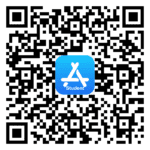
At the High School and Middle School level, teachers have begun integrating the use of the StudentSquare platform. Students can download the app via the links on this page, or the QR codes below:

To find answers on your own, you can also go to our help articles. To do this from the web, log into ParentSquare, click on the ? symbol at the top right side of the page and click on “Help Articles.” To do this from your app, click the triple bar in the top left corner, and then click on the “Help” button to access “Help Topics.”
You can also click here to go directly to the help articles for parents and students.
***FOR ALL PERSONAL ASSISTANCE OR TROUBLESHOOTING, PLEASE REACH OUT TO YOUR SCHOOL.***
Your school’s ParentSquare administrator will contact our Support Team to escalate any issues that they are unable to resolve.
At the High School and Middle School level, teachers have begun integrating the use of the StudentSquare platform. Students can download the app via the links on this page, or the QR codes below:
To find answers on your own, you can also go to our help articles. To do this from the web, log into ParentSquare, click on the ? symbol at the top right side of the page and click on “Help Articles.” To do this from your app, click the triple bar in the top left corner, and then click on the “Help” button to access “Help Topics.”
You can also click here to go directly to the help articles for parents and students.
***FOR ALL PERSONAL ASSISTANCE OR TROUBLESHOOTING, PLEASE REACH OUT TO YOUR SCHOOL.***
Your school’s ParentSquare administrator will contact our Support Team to escalate any issues that they are unable to resolve.